
Web whatsapp | Use whatsapp in a browser properly
Web whatsapp
Do you want to run your whatsapp in your pc or desktop also and finding a guide about how to use web whatsapp? Then,you are going to learn it easily here.
Yes,now it is too easy to use whatsapp in your pc also or you can say in your desktop personal computer or laptop personal computer by web whatsapp feature. But let me tell you something more interesting in this.
Many people are using this trick to get others’ whatsapp account in their own pc or even in their android/windows phones and secretly keeping an eye over their activity by using the trick of web whatsapp.So,it is also necessary to know about how to get protected from that too.And that you will learn only when you will learn about how to use this trick of using whatsapp in your PC or even a android or windows phone’s browser.
So,let’s start the procedure and follows these easy steps below:
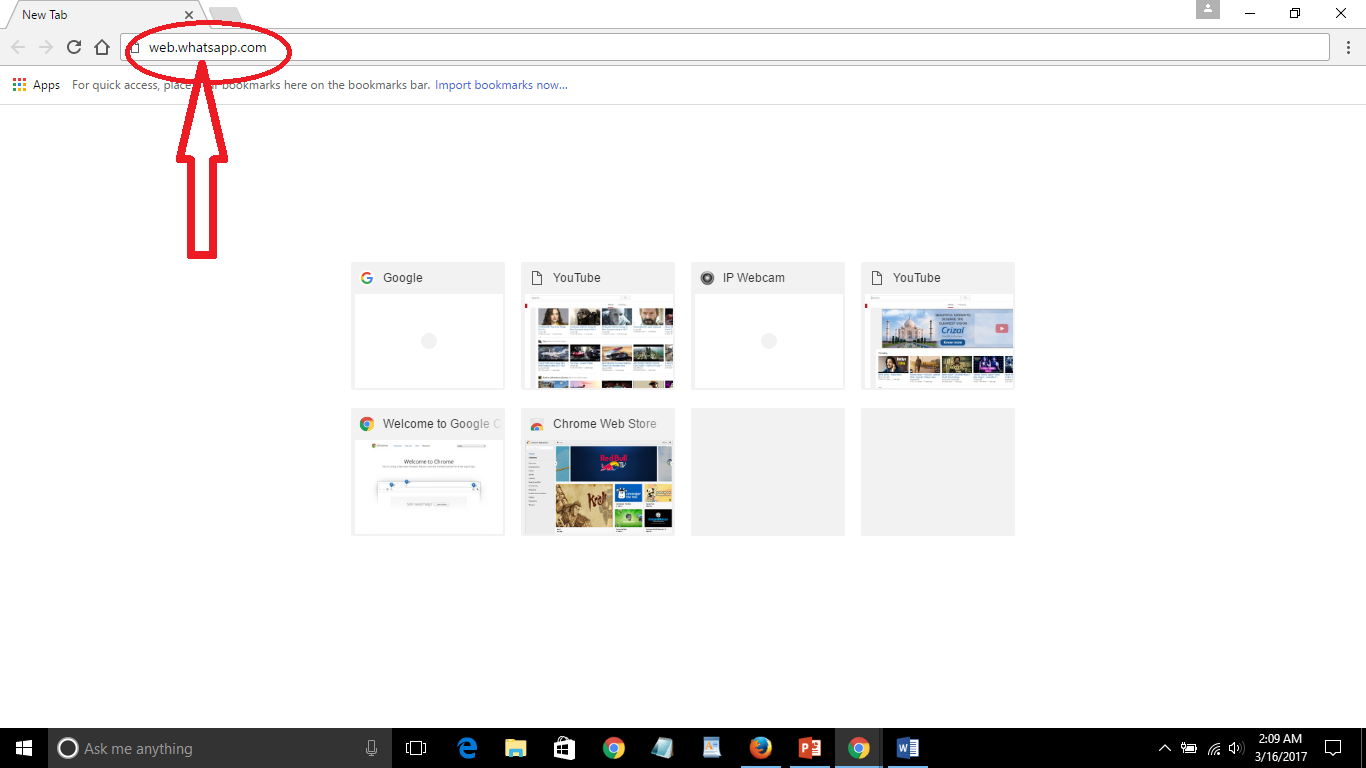
- First of all,go to any of your web browser in your desktop PC or Laptop and enter the address http://web.whatsapp.com and click on Go
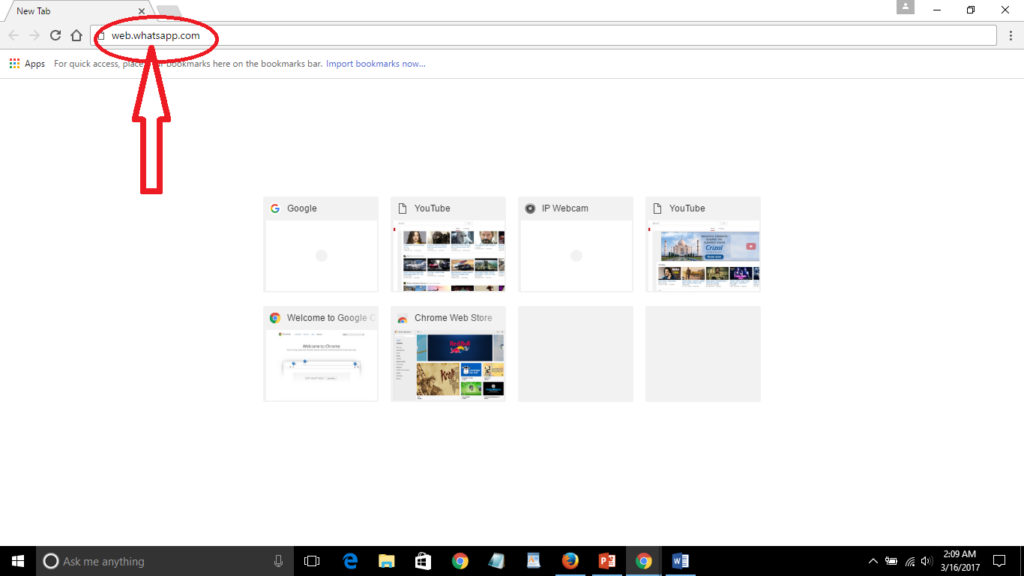
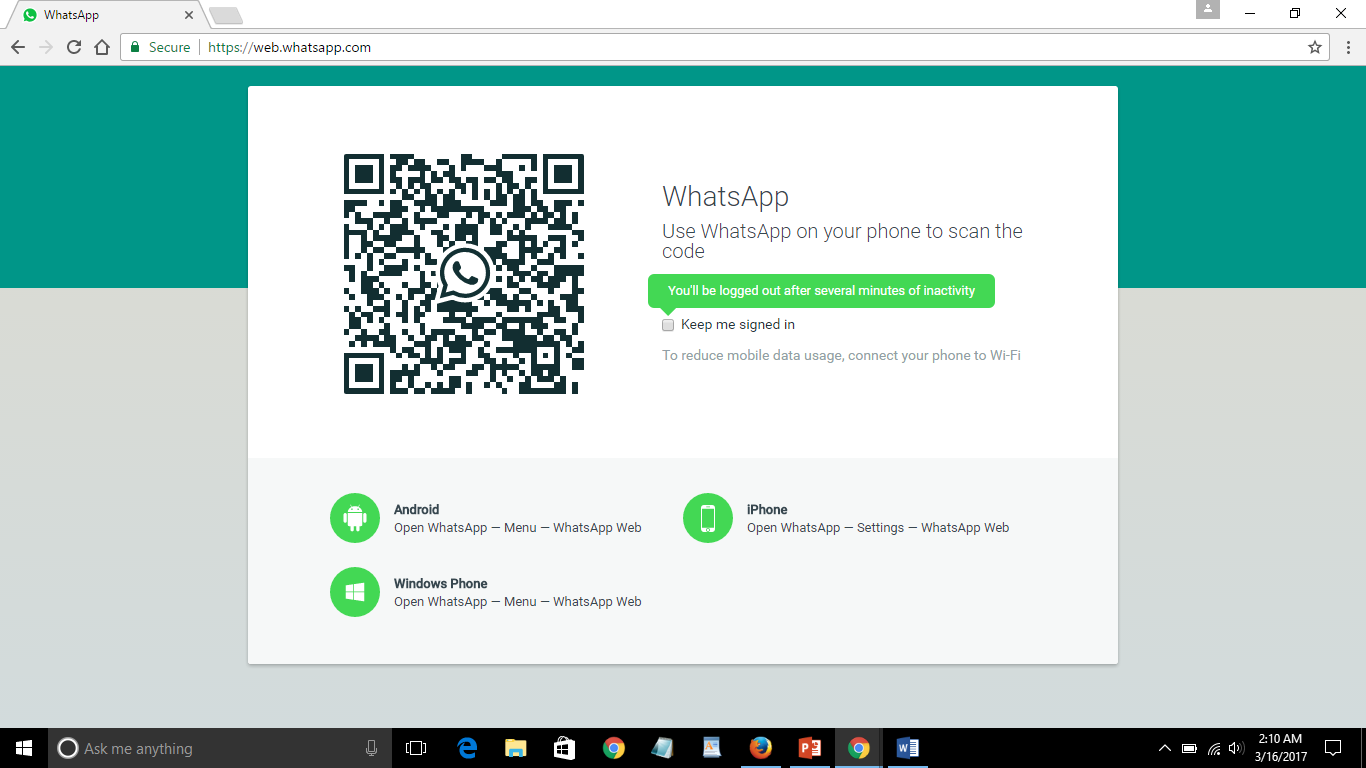
Web whatsapp - Now, you will enter here and will get this interface
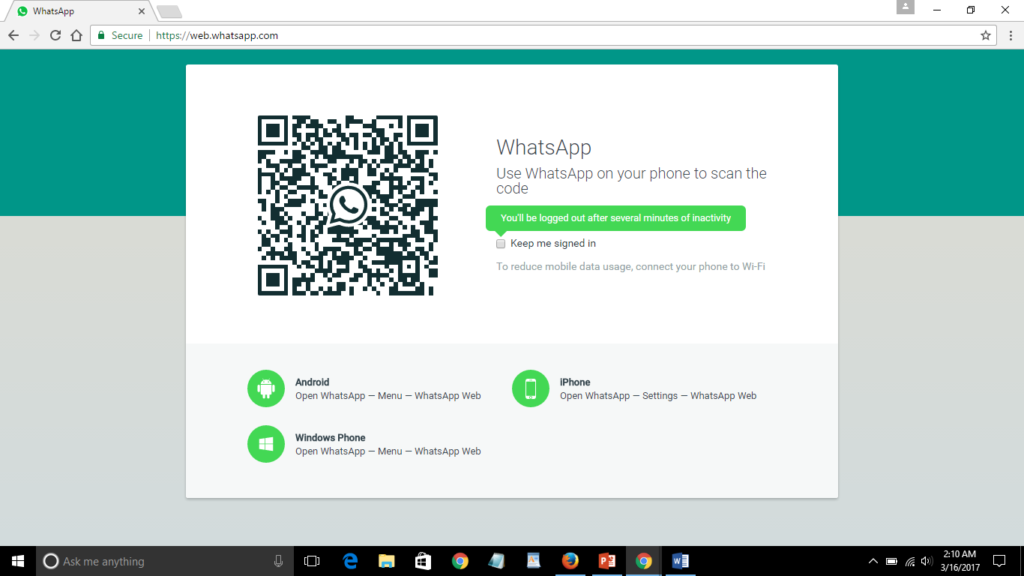
Web whatsapp Now here,you can just check in the options and it supports the iphone,windows/android devices.
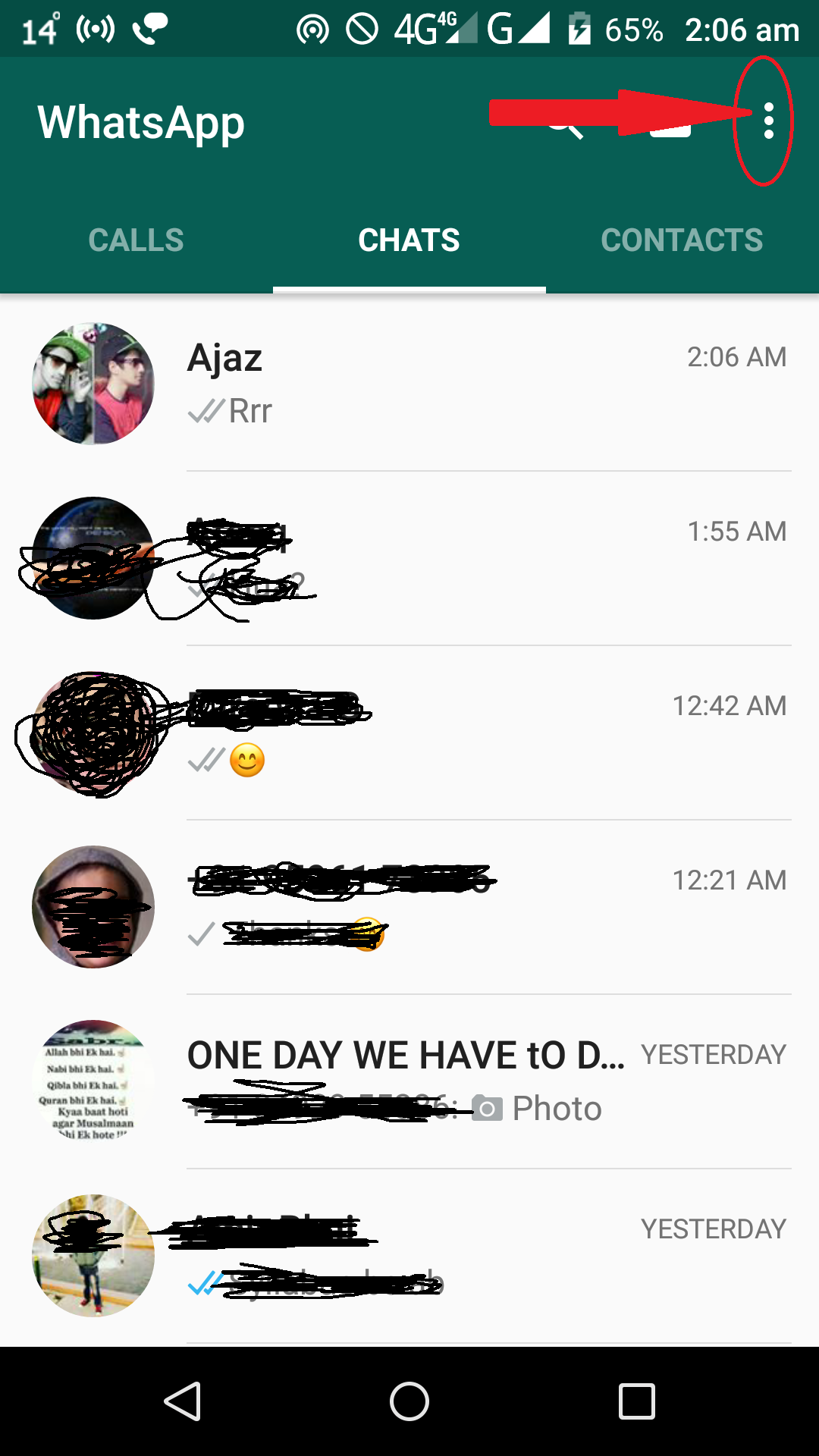
- Now,just open up your android/windows phone and go to whatsapp and click on the dotted menu option present at the top right corner of your chat panel/page
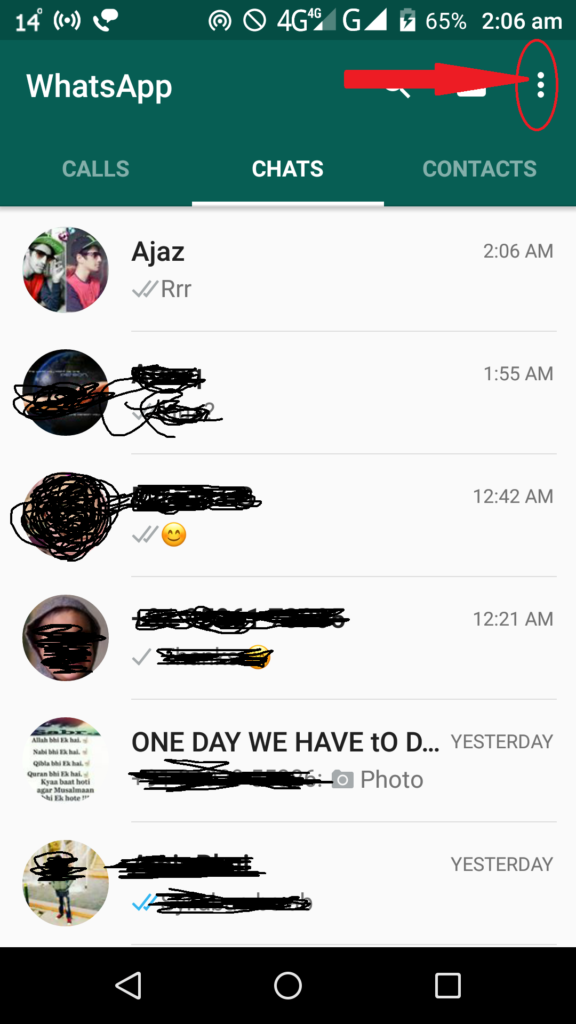
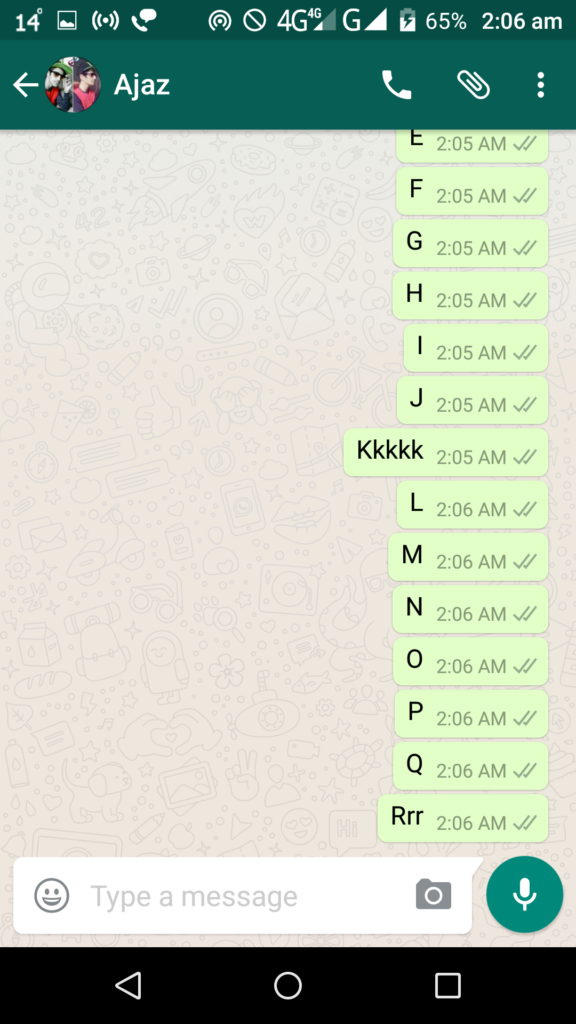
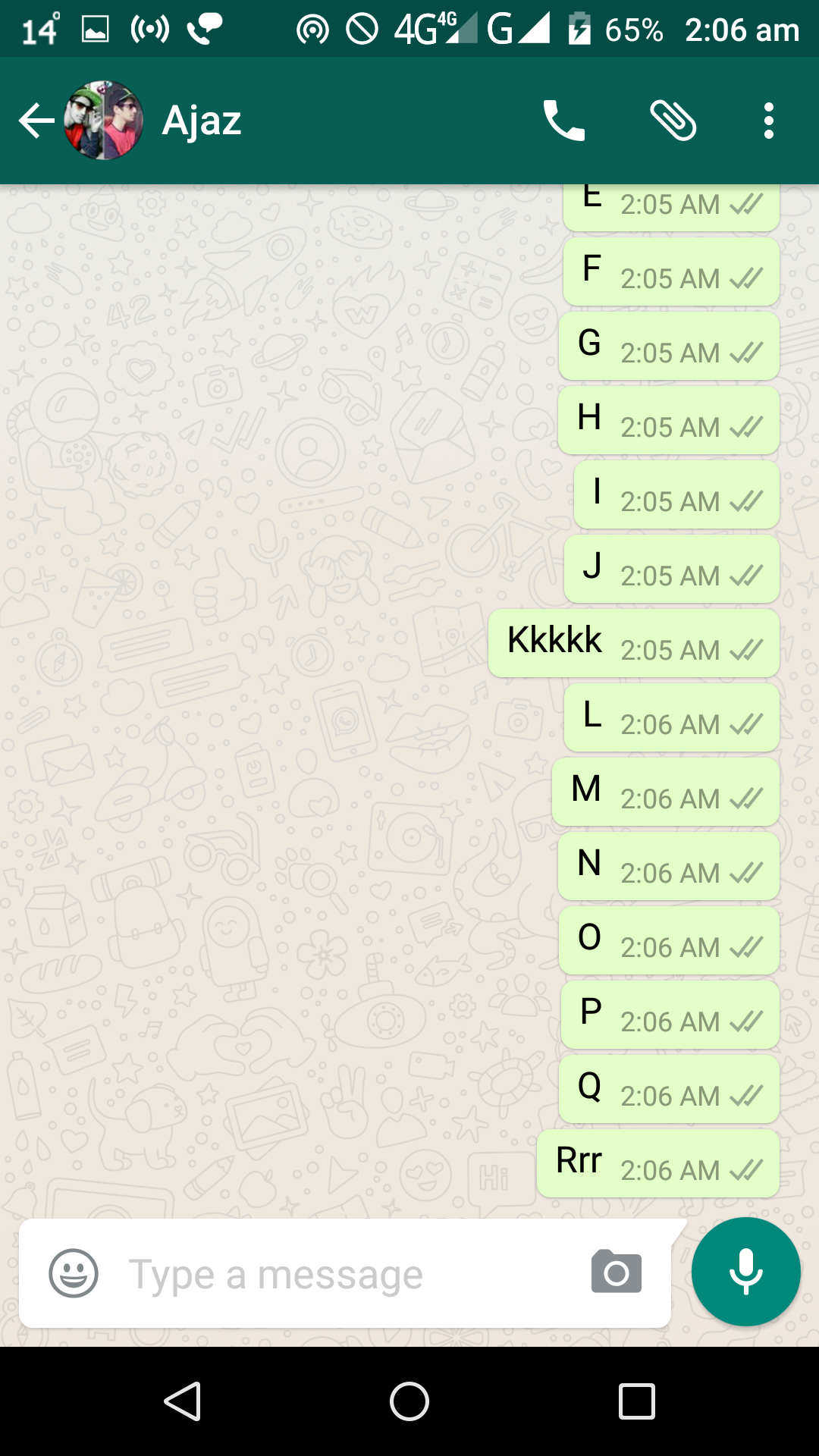
Web whatsapp - Here,before going there,I am just selecting one of my friend’s contact to message him just for the proof that I will get the same data when I will open the whatsapp in PC, here I select one and messaged him a string
Web whatsapp -
Now,as you have done the step 3,You are currently here
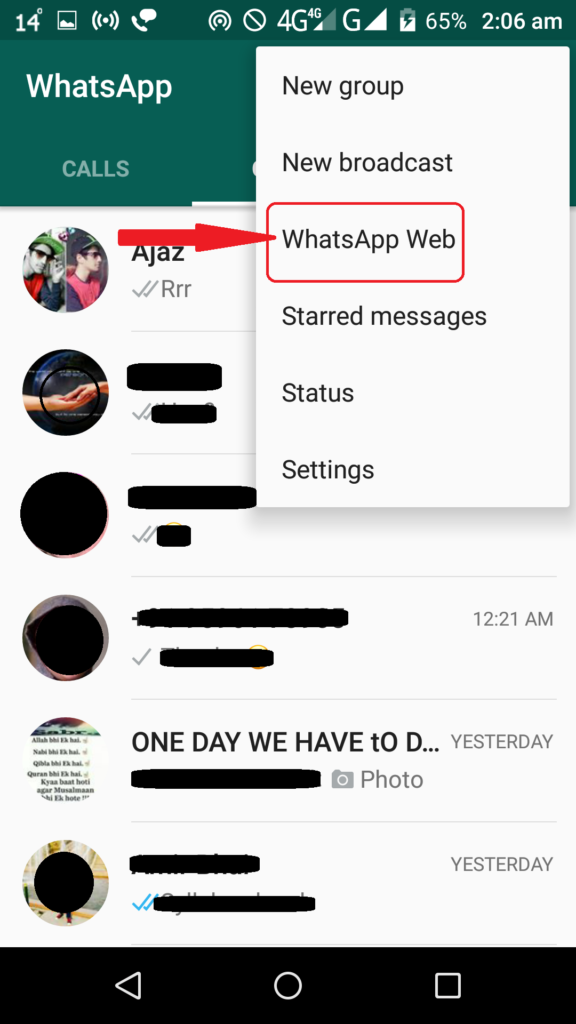
Web whatsapp Now click on Whatsapp web option.
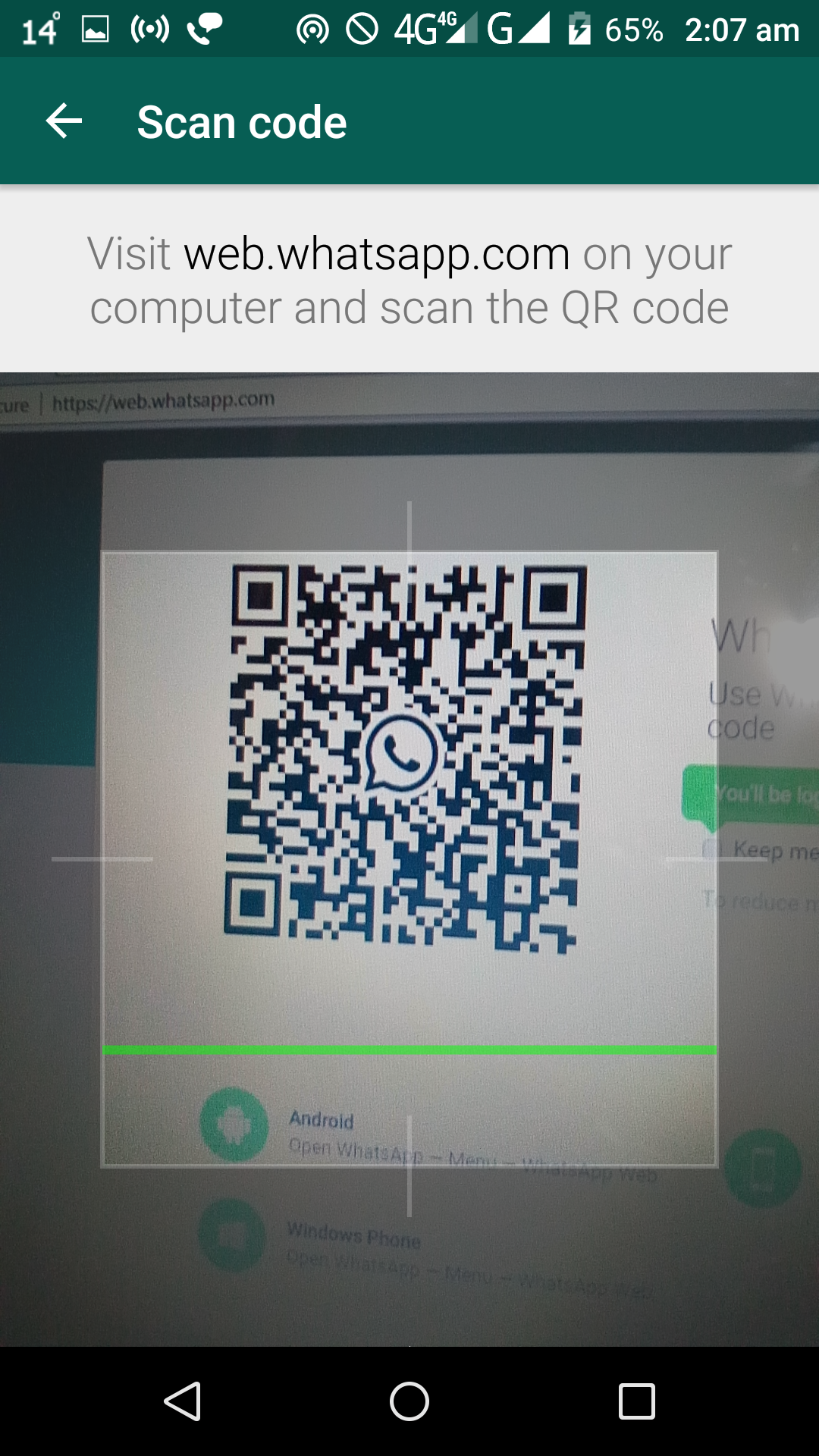
- It will get you to the QMR code reading camera section

Web whatsapp Now simply just scan your PC whatsapp bar code and wait for two seconds and it will get to it automatically.
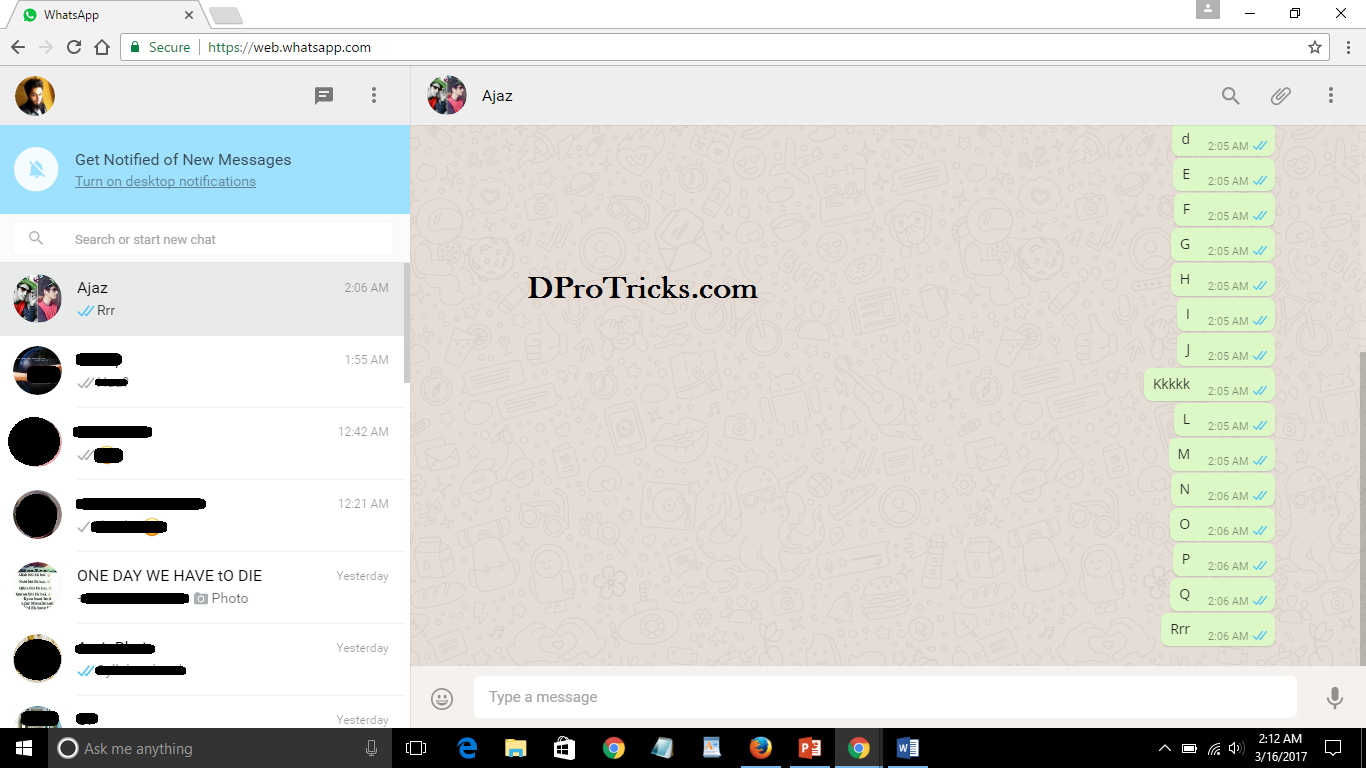
- Ok,so,finally we have got our whatsapp in our PC web browser and I can use it as I like.
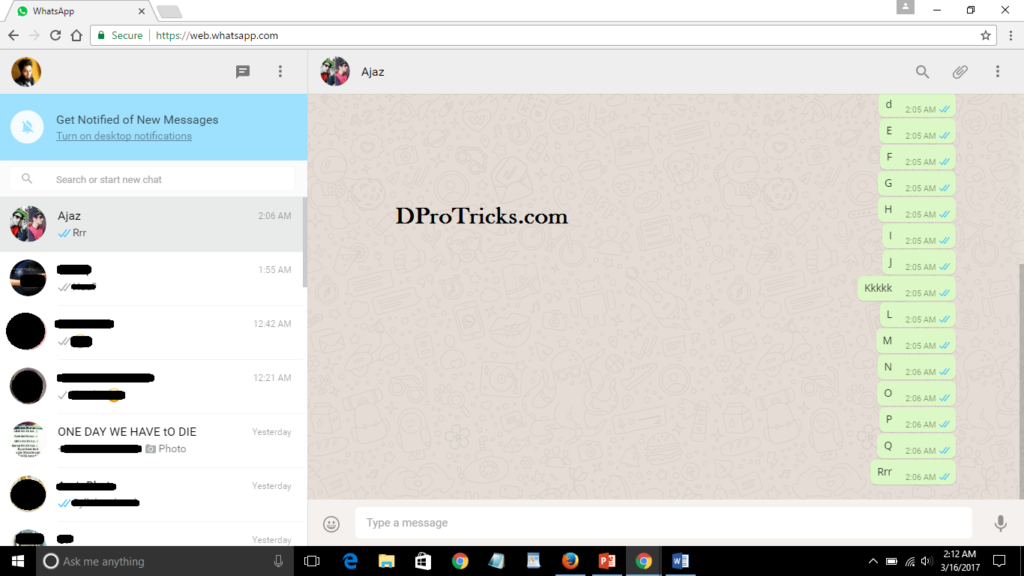
Web whatsapp You can see the same contact and the same string I sent to him and so, now I can do anything from here.

Congrats! You are done.
NOTE:
- You can use the same guide if you want to use the same whatsapp in your another android/windows phone. Just go to chrome browser and enter the same website there and click on options and click on request desktop version and the after that just follow the same above mentioned steps.
- If you want to disconnect from your PC web whatsapp,just go to your android/windows whatsapp and again go to the same whatsapp web option, and there you will see the logged devices.And from there you can easily logout of all devices by just a single click.So,for security purpose,if you haven’t set a password to your whatsapp app in your phone,kindly keep checking your whatsapp web option to ensure whether if some device is connected!
Hope you would find this article helpful and if you are still facing any problem in it, let me know that below in the comments section and I will try to help you out with that!
Great, so I will expect a list of websites that are about health and have a total traffic of 30k-200k monthly visits, that is coming mostly from search engines
Thank you
Tht’as going to make things a lot easier from here on out.