
Remote Desktop | Access any Computer remotely (100% Working)
Remote Desktop
Do you want to access a computer remotely and control over it? Then, here, I will tell you about how to achieve it by Remote Desktop.
Remote desktop is basically a program or set of instructions for an operating system like windows 7, windows 8, windows 10, Linux etc which leads a user to connect to any other computer which is present in another location. It should be either connected to the same network for basic setups.For advanced setups, it could be present anywhere in anyway.This allows to see that computer’s desktop and everything in it, its controls, functions and interaction with it as if it were local.
In simple terms, Remote Desktop refers to the ability or it is the property of a computer to find and connect remotely to any other computer and control its features like desktop, every basic function etc just as if the user is operating the same computer (remotely connected) in front of himself. Port 3389 and RDP Protocol is used to access the other computer by using Remote Desktop.
Remote desktop connection feature depends upon various number of protocols. Basic protocols among them are virtual network computing, Remote Desktop Independent protocol (commonly known as RDP), Computing Architecture etc
Features
Remote desktop in a Windows to connect or access another computer has a lot of features and advantages and it can be used to achieve various functions like:
- To access a workplace computer from home or from anywhere you like to access from.
- You can remove any computer problem by using the Remote desktop.
- Or to access a home computer from other locations like Office or a workplace.
- All administrative tasks can also be performed by using the Remote Desktop feature.
- This can be used to access or to use a particular software or program present on the other computer easily.
So, Let’s move on to the procedure about how to achieve this very easily.
Follow the steps given below
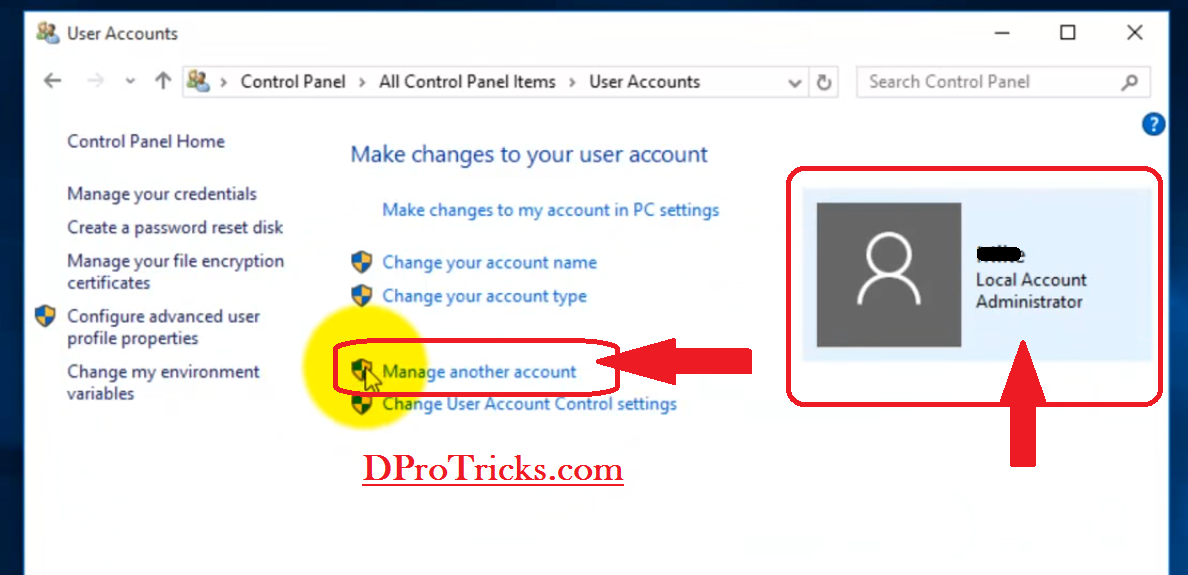
- First of all, you would need to allow the remote access for the user or admin of the computer you want to access remotely. For this, go to control panel and then go to user options. Or you can directly search in the search box for the user options. Under that, you will find the admin of the computer. Here, you can add password to the admin or you can create another user and its username and password.
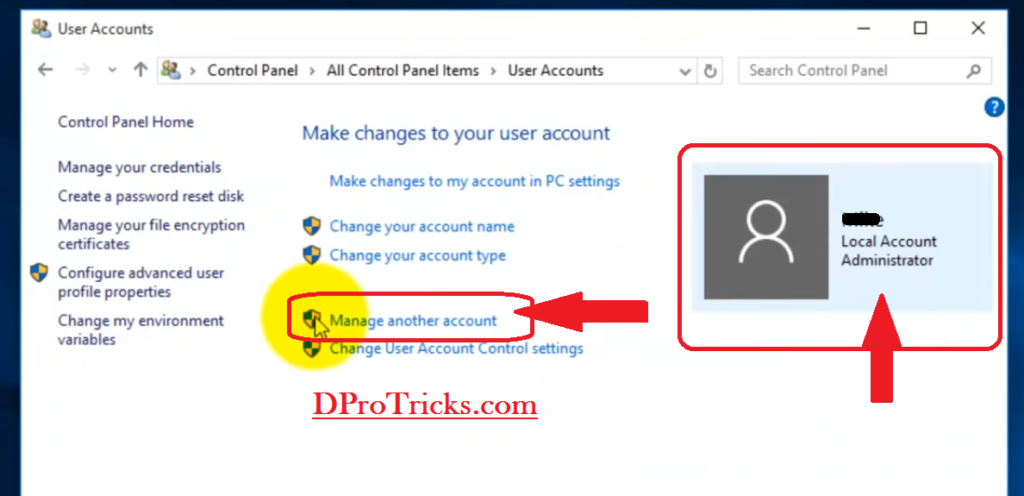
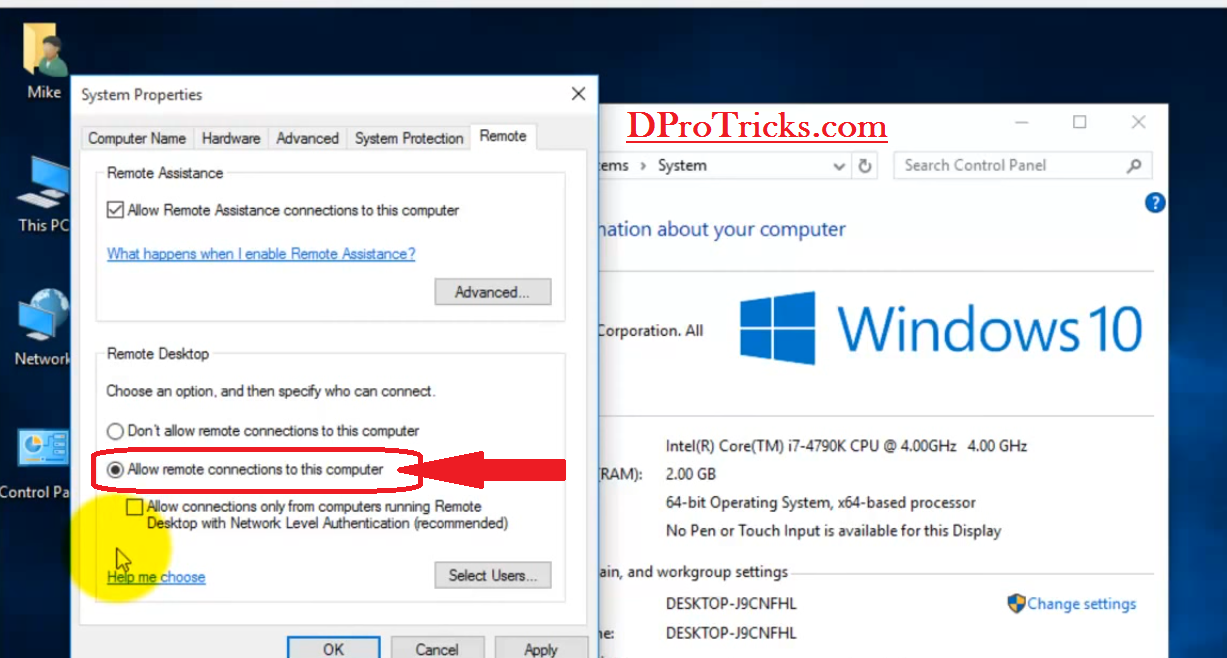
- Now, if you are using Windows 10 or any other operating system, Enable Windows 10 ( or any ) to allow Remote desktop. For that, Right click on your PC icon present on the home screen. And then, click on Properties. So, after that, click on Remote Setting present on the right side panel. And check mark the “Allow remote connections to this pc” Option like this
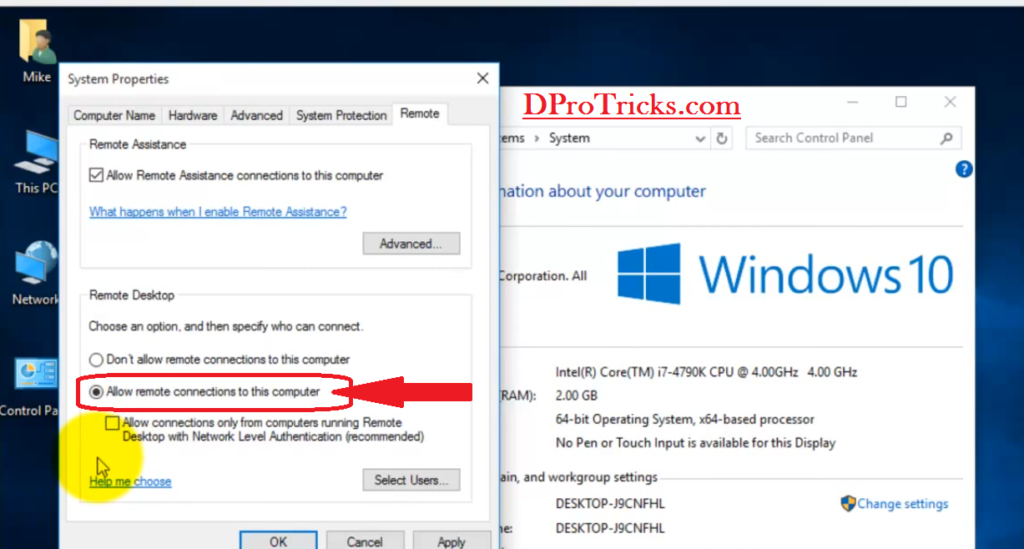
-
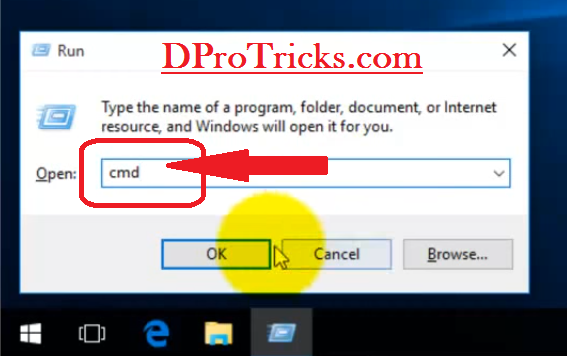
After that,You would need the IP address of the Windows 10 PC you want to access remotely. And, to do this directly press the Windows key+R on the keyboard to open the Run window in your PC, and here, you will have to run the command prompt window. After that, type “cmd” in your Windows Run box like this
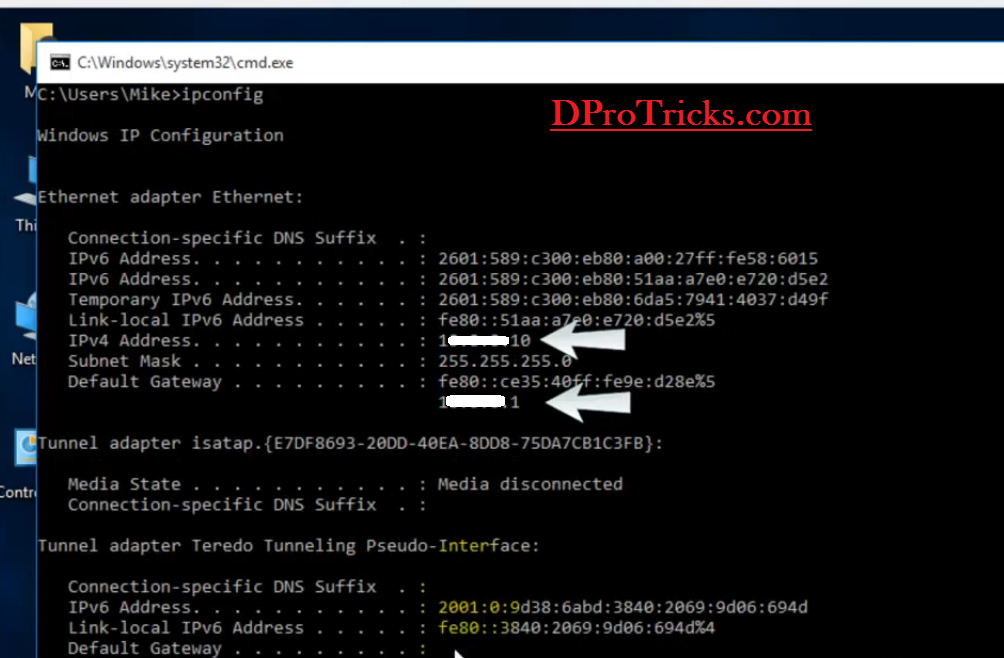
- Now in order to find your IP configuration in your command prompt window type the command “ipconfig” and hit Enter to get your IP configuration like IP address and default gateway.
- You have done all the basic steps for the computer you want to access remotely. Now, let’s move on to the new computer from where you want to access the previous computer.
- If the Computer, you want to access, is present or connected to the same network you are connected to, then, search in your search box for remote desktop connection. And click on this.
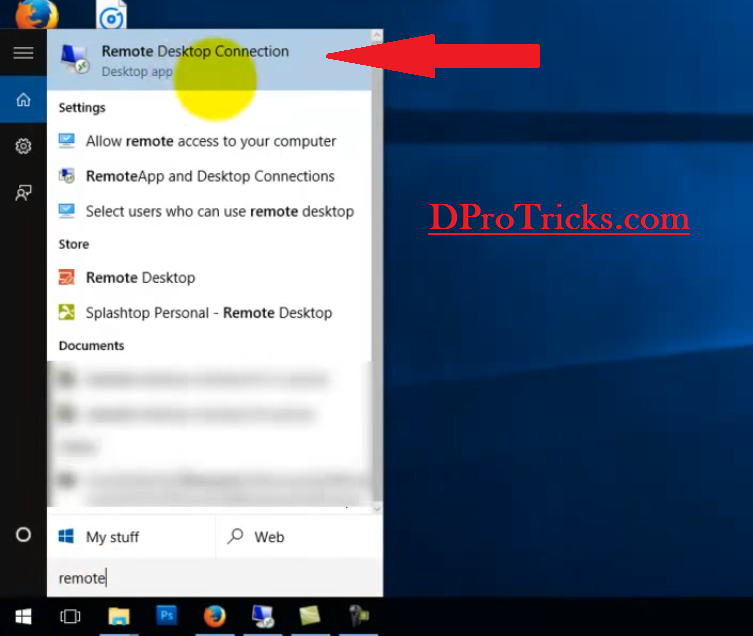
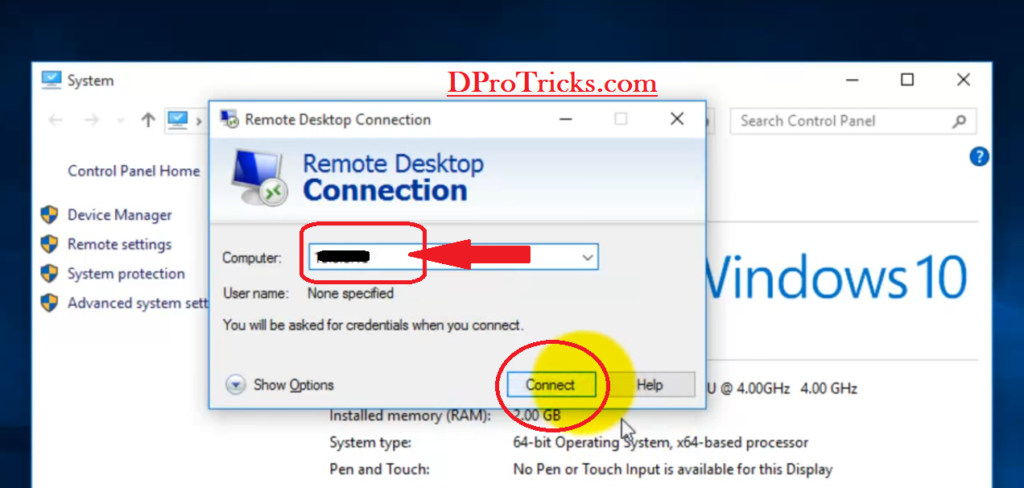
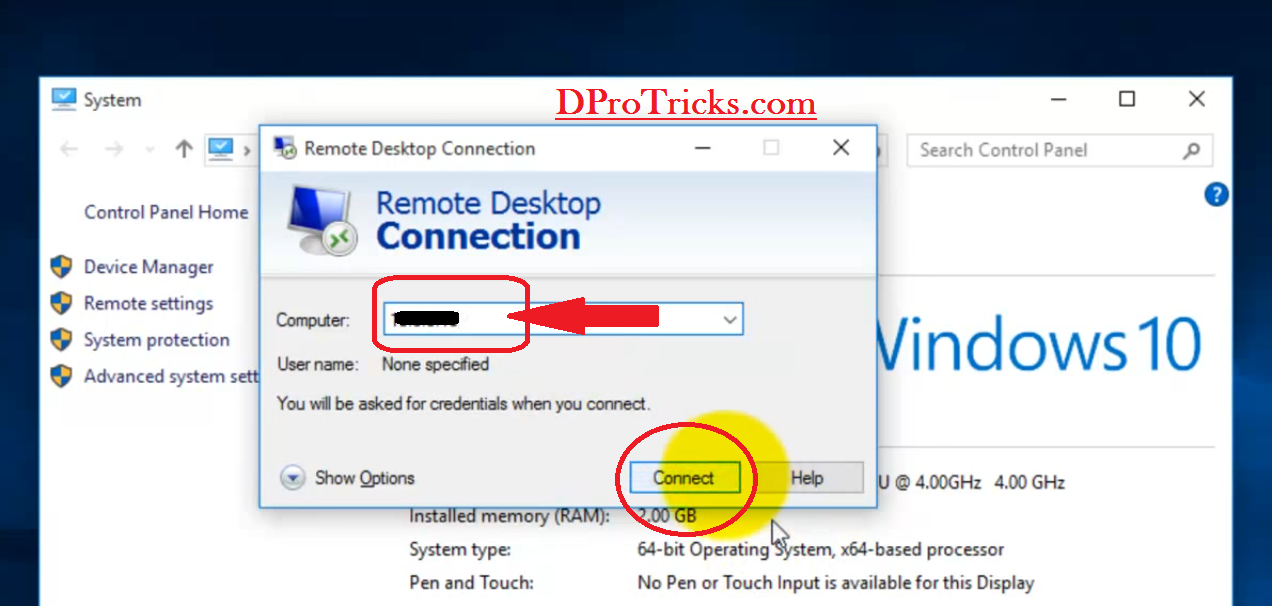
- After that, in the remote desktop connection dialogue box enter the IP address of the previous computer which you have copied in order to access that remotely. After that, to connect with that PC, Simply click on Connect
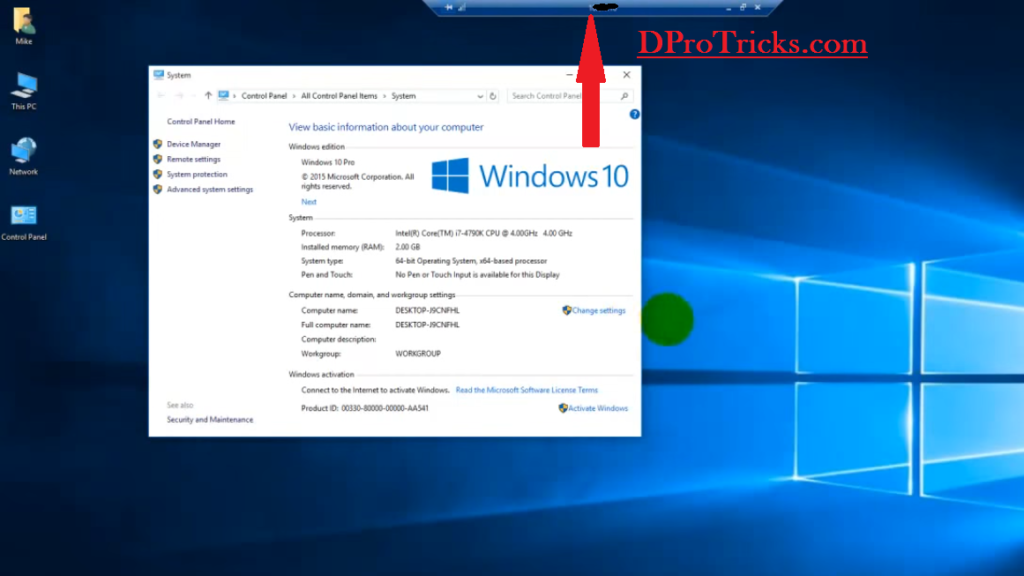
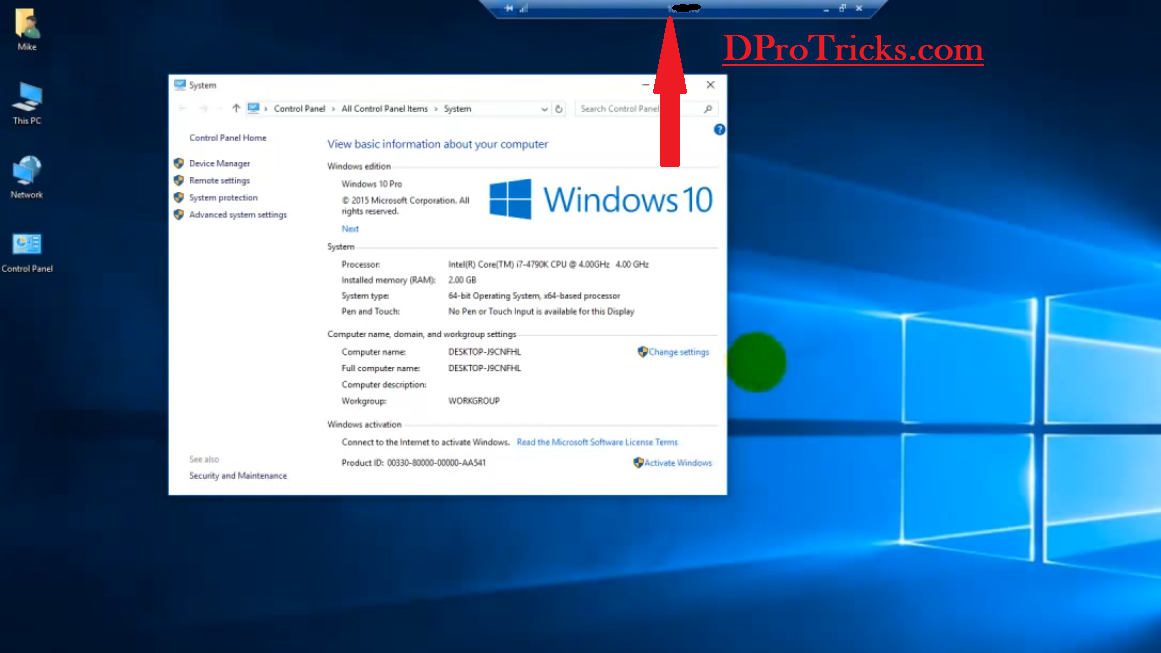
- Now, you can see that I am connected with the other Computer here
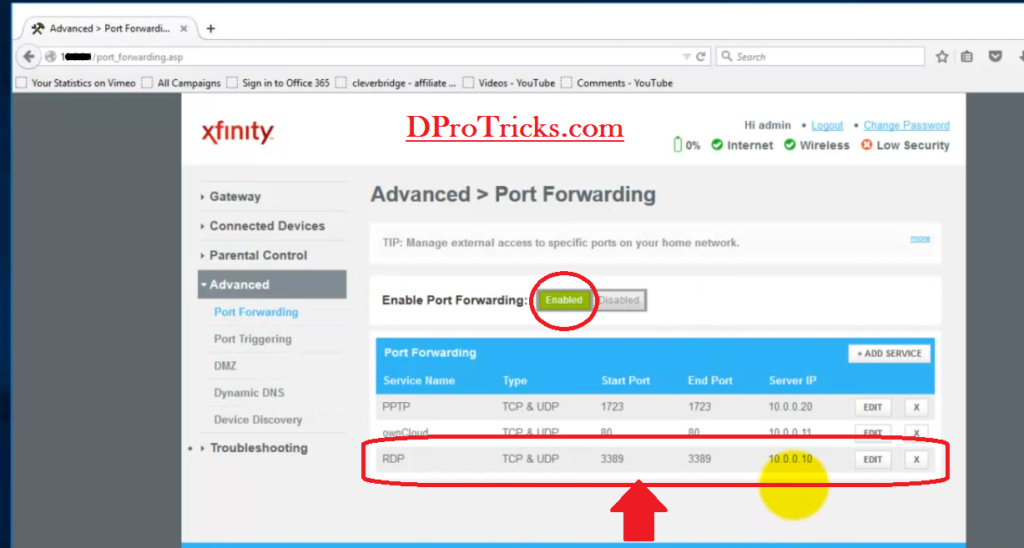
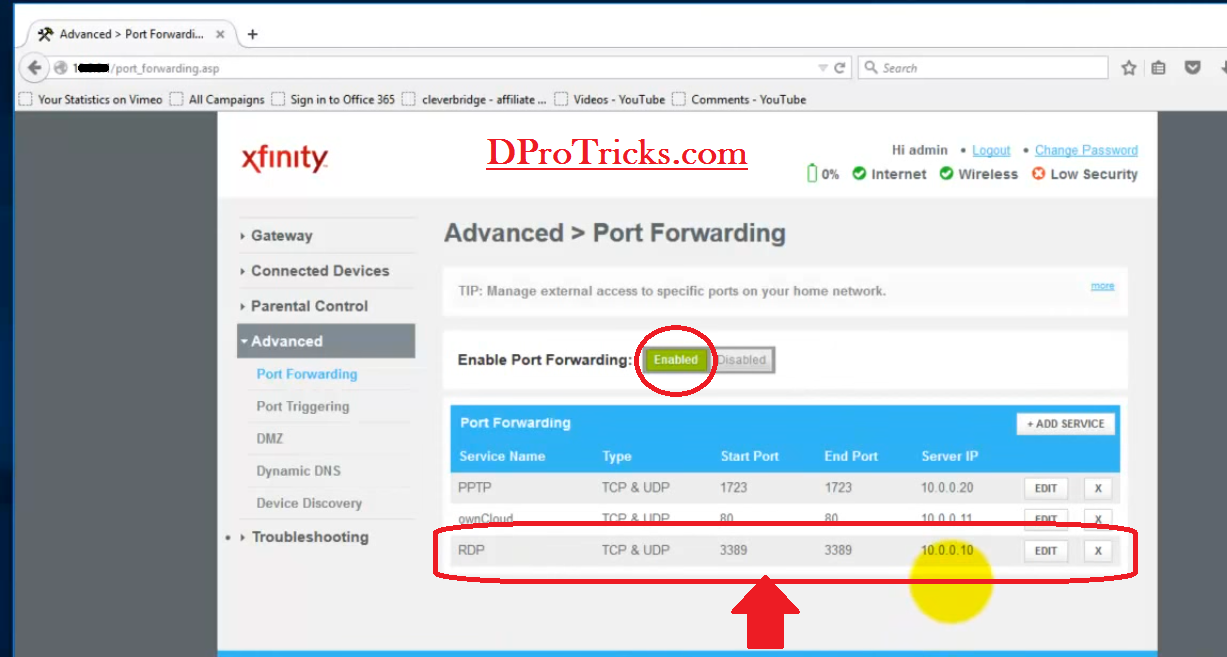
- But in the other case,If you are accessing the PC from a WAN connection which is usually outside of the local network then you would need to port forward port 3389 on the router or modem’s firewall in order to allow remote access to that computer.For that simply go to your router login page and sign in to your router or modem’s settings. And there, search for port forwarding option. Click on Add new and enter the following details.
Name: RDP
Type: TCP & UDP
Start port: 3389
End port: 3389
Server IP: IP address of the computer you want to access to.
And then click on ADD.
- Now, in order to access to other computer, you would need to use the WAN IP instead of the LAN IP address. And the rest of the process is same.
Hence, by using this process you can access any Computer remotely.
If you are facing any problem regarding this, write down below in the comments section.
You may like to read:
>Control your pc from android phone
>Top 5 free Android Emulator (2019)
Too much technical stuff!! Instead, simply use tools like R-HUB remote support servers, logmein etc. for remotely accessing computers. They are easy to use.
Hello Prashanta,
Yes, those are also good to use.