
Android finger scanner lock | 100% Real for Any Android phone (2019)
Android finger scanner lock
Are you looking for a finger scanner that could look or scan your fingerprint in order to unlock your phone? Here is the best one.
Android security
Android security plays a very very important role for securing your Android device from being accessed by another user. There could be a lot of important information and notes and data in your Android phone so, it must be secured properly. Although there are so many Android security softwares but everyone’s choice is different for choosing the security operation employed. There inbuilt Android security options like a password or a pin code or a pattern. But there are so many people who want to have a fingerprint scanner in order to unlock the phone or simply a finger scanner.
There are a very few devices which support the fingerprint scanner unlocking depending upon whether the fingerprint scanner hardware installed in them or not.
But, today, I’m going to tell you how you can achieve a finger scanner unlocking in any Android device, which do not support any hardware of finger scanner unlocking.
So, without wasting anymore time, let’s move on to the procedure.
In order to achieve real finger scanner unlocking in your Android phone or any other smartphone, follow the procedure given below.
Steps:
- First of all, you need to install an application called ICE Unlock Fingerprint Scanner in your smart phone. For that, go to your google playstore and search for ICE Unlock. And the download it and install it in your device.

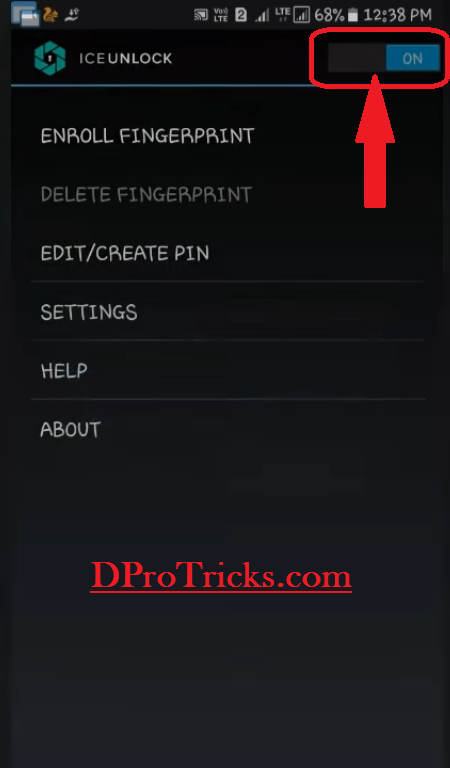
- After that, open the app and skip the manual and get to the main screen. And switch ON the ICA unlock features from the top right corner.
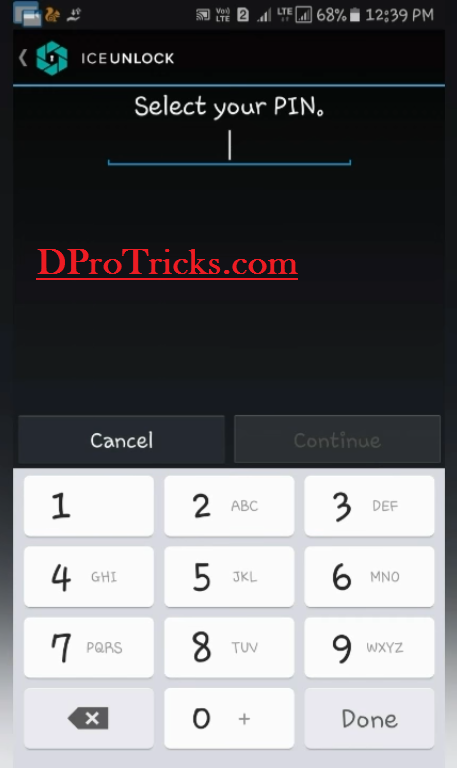
- After this, it will ask you to select a pin. Select any number pin, so that if the finger scanner couldn’t work anytime, then you would have a secondary option to unlock your phone with this pin also.
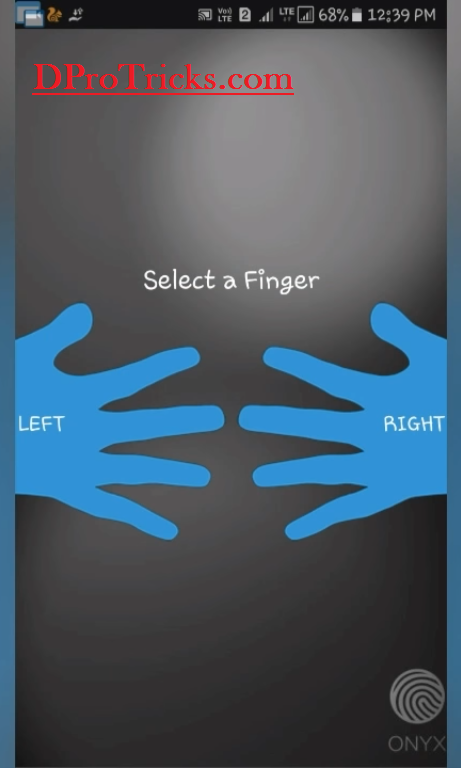
- Now, that you have selected a pin for you. It will present in front of you the left and right hand images. Here, select the head and one of its finger that you are going to use to unlock your phone.
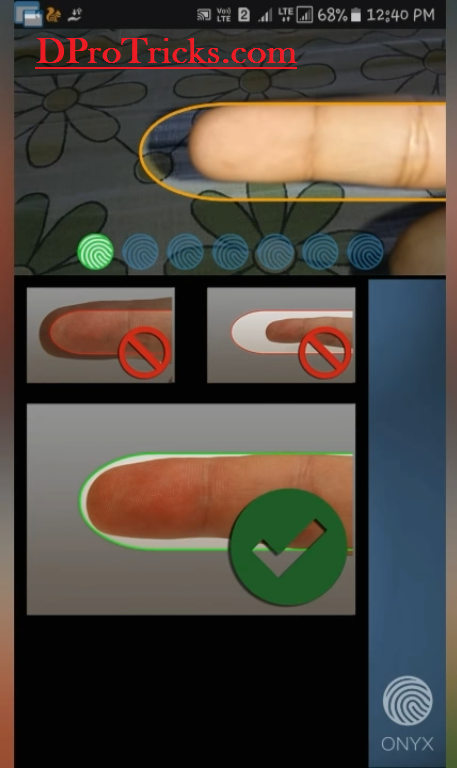
- Then, it will bring the scanner in front of you and then your selected finger properly in it 7 times
- As you have scanned your finger 7 times, it will notify that the fingerprint match is confirmed. And then click on Use This Fingerprint
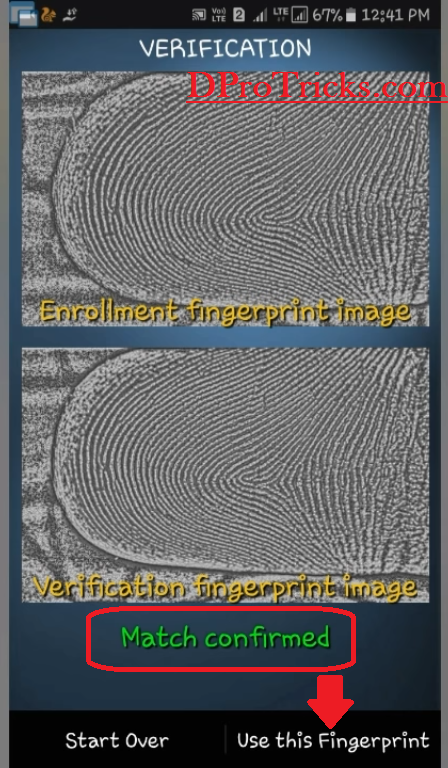
- That’s it. After this, it will ask you to enable it then simply click on Ok and enable the lock.
- Now, when you will lock your phone and again unlock it, you will get this screen to scan your fingerprint.
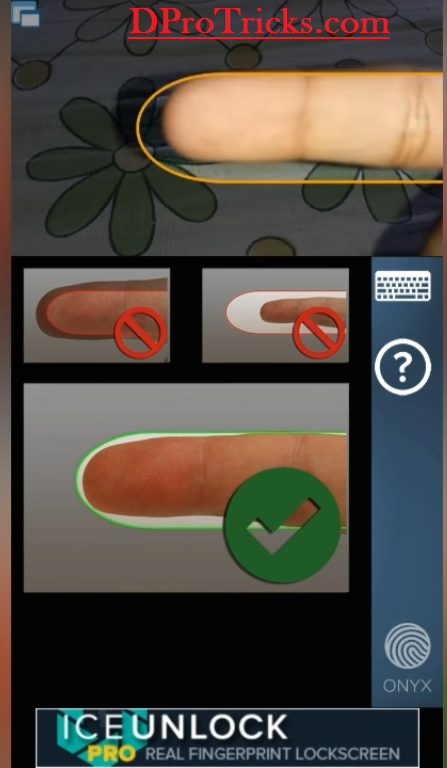 And if you use some other finger or someone’s finger, it will never get unlock.
CONGRATS! You have successfully achieved a finger scanner lock in your smartphone.
If you are facing any problem regarding this, you can write down below in the comments section.
You may like to read:
Hi, thanks for this great information. It helped me a lot, keep doing this great work.
hi. very good article
thanks for sharing .keep up the good work
Thanks for the wonderful article.
thank u for this information